
Deploying with MDM
For fleets, the Endpoint Suite reads a managed configuration file that your device management tool can place on each machine. It pins behaviour so that individual users cannot undo your rollout.
Where the file goes
- macOS: under
/Library, in the location your MDM normally uses for managed app configuration. - Windows:
C:\ProgramData\Sentilai\managed-config.json.
What you can pin
- Environment — which Sentilai environment this fleet belongs to.
- Start at login — force the app to launch with the session.
- Automatic governing — force new tools and MCP servers to be governed as they appear.
- Restrictions, three separate switches:
allow_signout— whether the user may sign out.allow_disconnect— whether the user may disconnect a governed tool.allow_ungovern_mcp— whether the user may stop governing local MCP servers.
How restrictions behave
Each is enforced in two places: the underlying command refuses, and the button disappears from the interface with an explanation that the setting is managed by your organization. Enforcing only in the UI would be theatre; enforcing only in the command layer would leave buttons that fail confusingly.
A sensible rollout
- Pilot on a handful of machines with nothing pinned, so people can undo things and tell you what broke.
- Then pin start at login and automatic governing — the two that make governance stick without taking anything away.
- Only pin the restrictions once your policy is stable. A developer who cannot disconnect a tool that is genuinely misbehaving will open a ticket with you instead, so make sure you want that traffic.
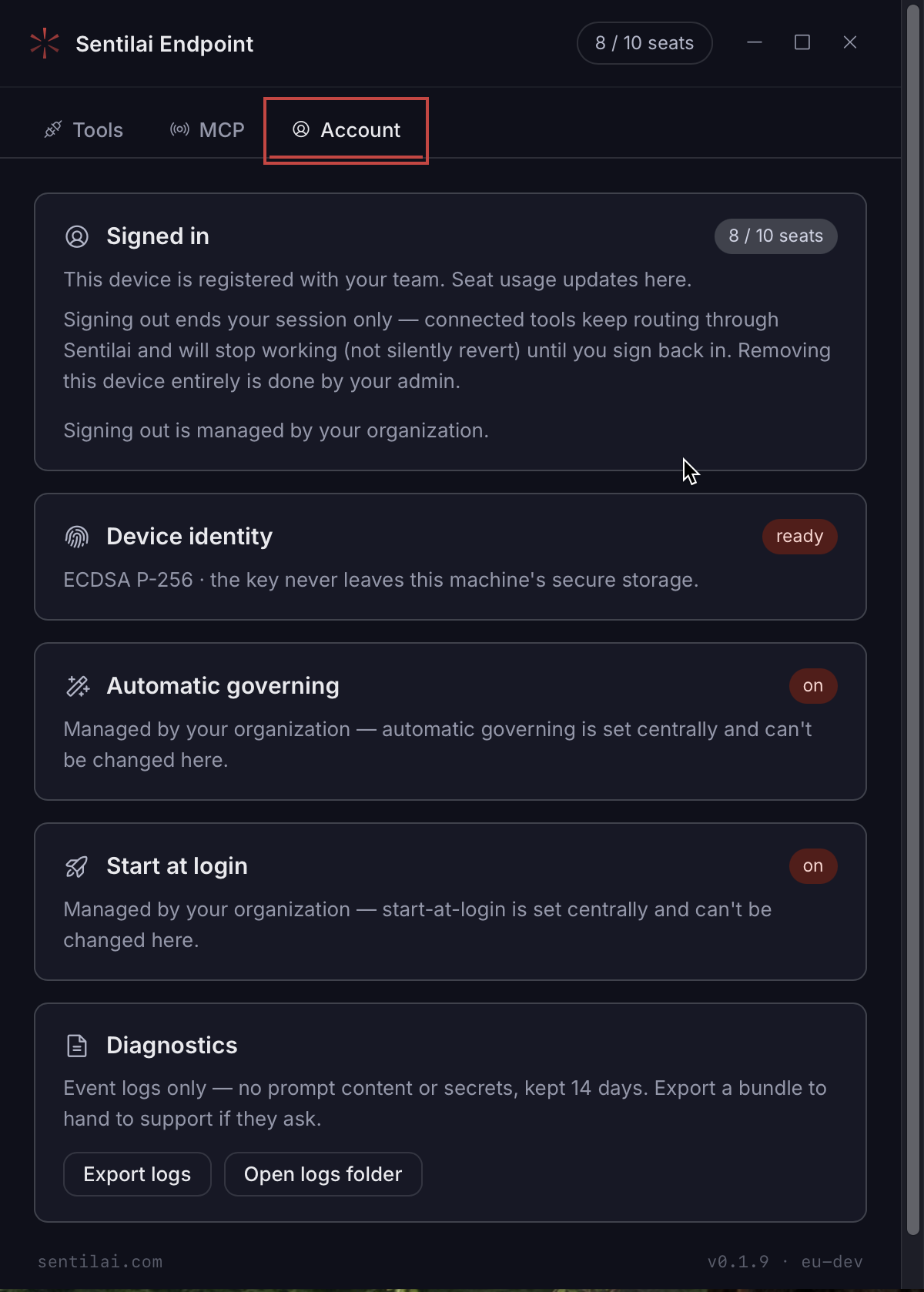 The same Account tab on a fleet-managed machine: sign-out, automatic governing and start-at-login are all set centrally, and the controls are gone rather than disabled.
No comments to display
No comments to display