
Set up single sign-on
SSO lets your wider developer team sign in with the identity provider you already run — Google Workspace, Microsoft Entra, or any generic OIDC or SAML provider. Your own admin login is unaffected: admins keep signing in with passkeys.
The wizard
Organization SSO walks through eight steps: Provider → Overview → Configure → Validate → Test login → Provisioning → Review → Activate. You can leave and come back; progress is saved as a draft.
The steps that need attention:
- Configure — the values from your IdP (issuer URL, client id and secret, or the SAML metadata). The wizard shows the redirect URL to paste into your IdP.
- Validate — a reachability check against the issuer before anything is saved. This catches the common typo class (wrong tenant id, a URL that only resolves inside your network) early rather than at first login.
- Test login — you sign in through the provider for real, in a separate window. The wizard refuses to activate until this passes.
- Provisioning — decide whether a developer who authenticates successfully is admitted
automatically, or waits for an admin to approve them (Users & Teams → Developers
shows them as
pending).
One provider at a time
Configuring a new provider replaces the existing one. The old configuration is removed when the new one activates.
If sign-in starts failing later
The SSO page shows the configuration status (active, testing, failing). A failing
state usually means a rotated client secret or an expired SAML certificate — re-run
Test login to see the provider's own error.
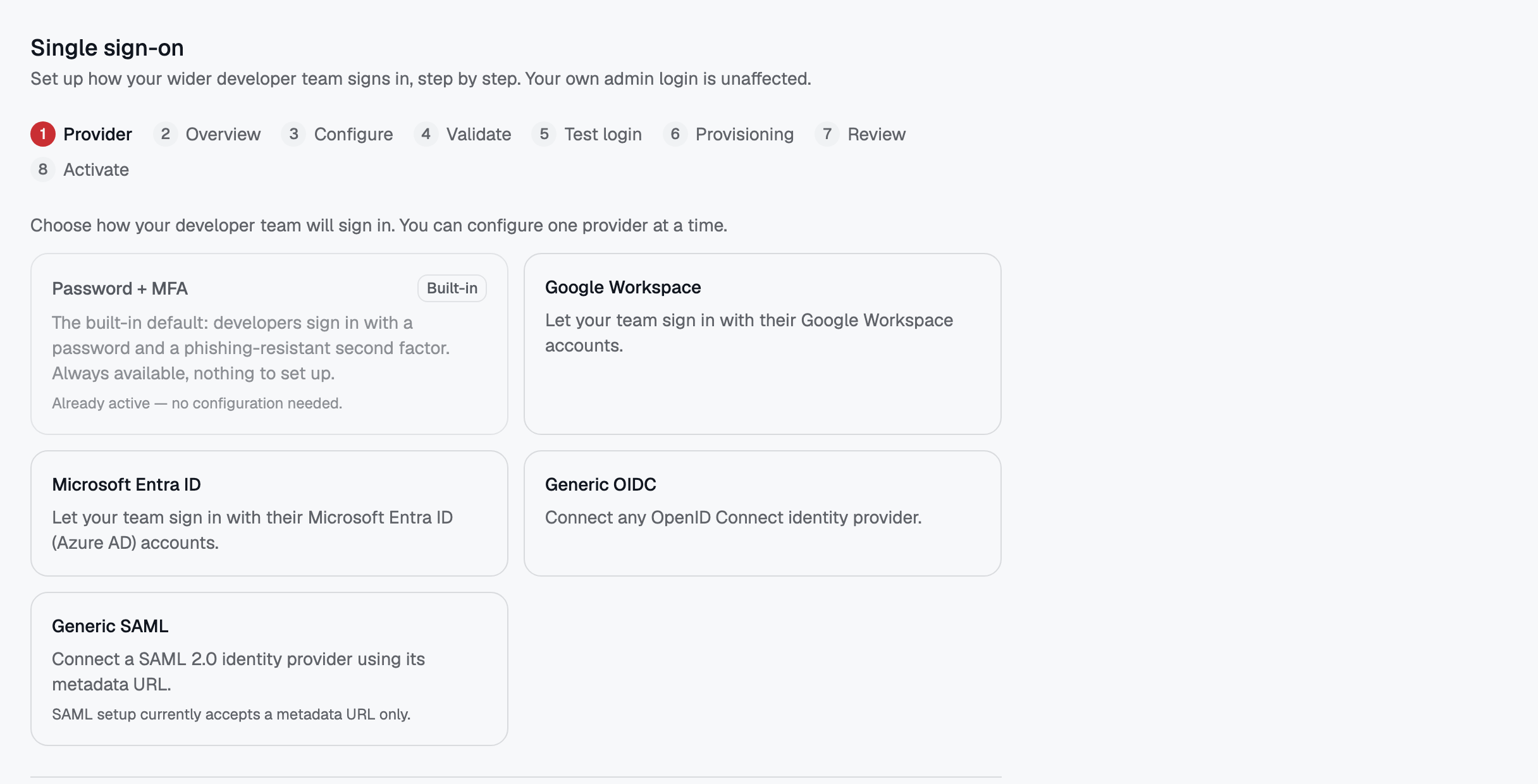
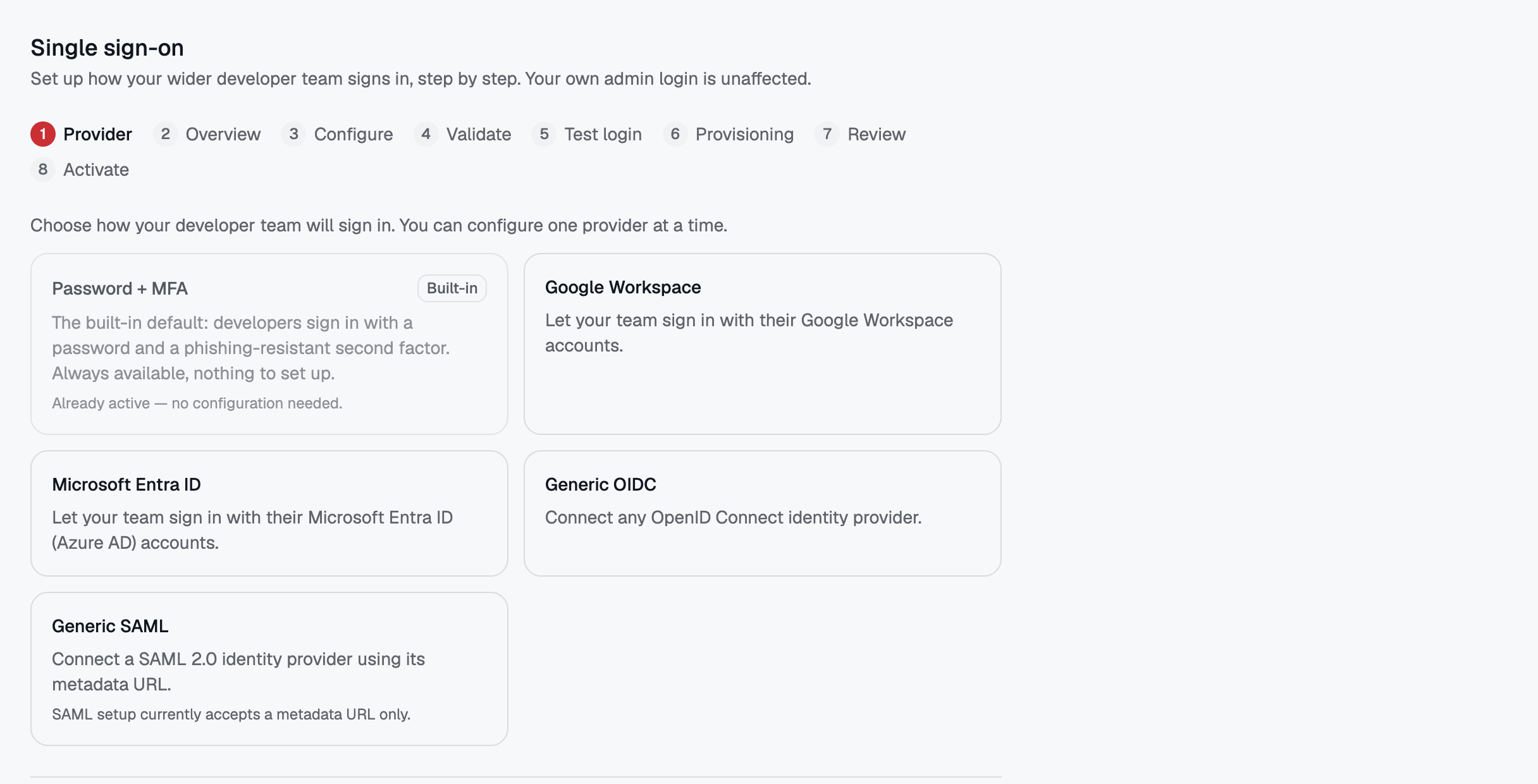 Organization SSO — Google, Microsoft, generic OIDC or SAML, one provider at a time.