
Invite an admin
Admins manage the organization: policy, providers, people, billing. They do not need the Endpoint Suite — that's for developers.
How
- Go to Users & Teams → Admins.
- Click Invite Admin, enter their name and work email.
- They receive an email with a passkey setup link.
The invite appears under Pending & past invites with status pending. Once they
complete setup it flips to accepted and they appear in the admin table above.
What the new admin does
The link opens a short setup page, then asks them to create a passkey (Touch ID, Windows Hello, or a security key). There is no password to choose — Sentilai is passkey-only, so there is no password to phish, reuse or leak.
Seats
Admins and developers share your plan's seat count. Users & Teams shows
X of Y seats used under the page title. If you're at the cap the invite is
refused with a "seat cap reached" message — remove someone who has left, or
contact us about a larger band.
If an invite goes wrong
- Sent to the wrong address — click Revoke on the pending invite. The link stops working immediately.
- Link expired or lost — click Resend. This issues a fresh link; the old one stops working.
- They lost their device — see Resend a passkey link.
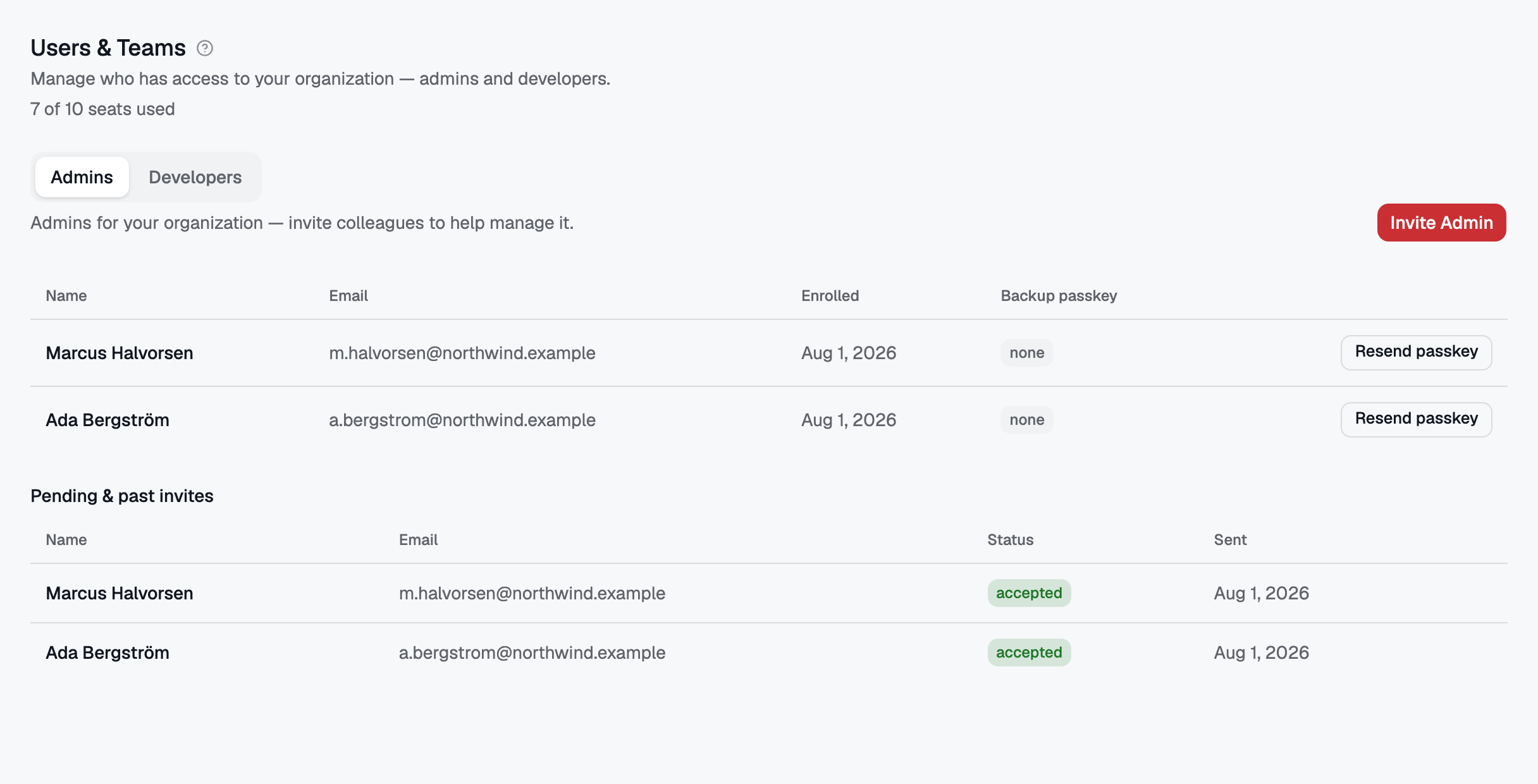
Users & Teams — the admin roster, seat usage, and pending invites.