
Set up an alert channel
Nobody watches a dashboard. Alerts put the findings that matter into the place your team already looks.
Adding a channel
Policy → Real-time alerts → add a channel:
- Kind — Slack, Microsoft Teams, or a generic JSON webhook.
- Name — how it appears in the list. Name it after the destination, not the event: "#security-alerts" tells you more later than "high severity".
- Fires on — the minimum severity: High only, Medium and up, or Low and up (all).
- Webhook URL — must be
https.
Test it immediately
Send test posts a message to the channel. It reports "✓ Sent", or tells you the destination did not accept it. Do this before you rely on it — a mistyped webhook URL fails silently forever otherwise.
The URL is write-only
Once saved, the webhook URL is never shown again. A Slack or Teams webhook URL is a credential — anyone holding it can post into your channel — so it is stored the same way a provider key is. To change it, remove the channel and add it again.
Enable, disable, remove
Each channel can be disabled without losing its configuration — useful during a noisy migration — and removed permanently.
Choosing a severity
Start at High only. A security channel that fires constantly is a channel people mute, and a muted channel is worse than no channel because you believe you are covered.
Widen to Medium once you know what High actually produces in your organization.
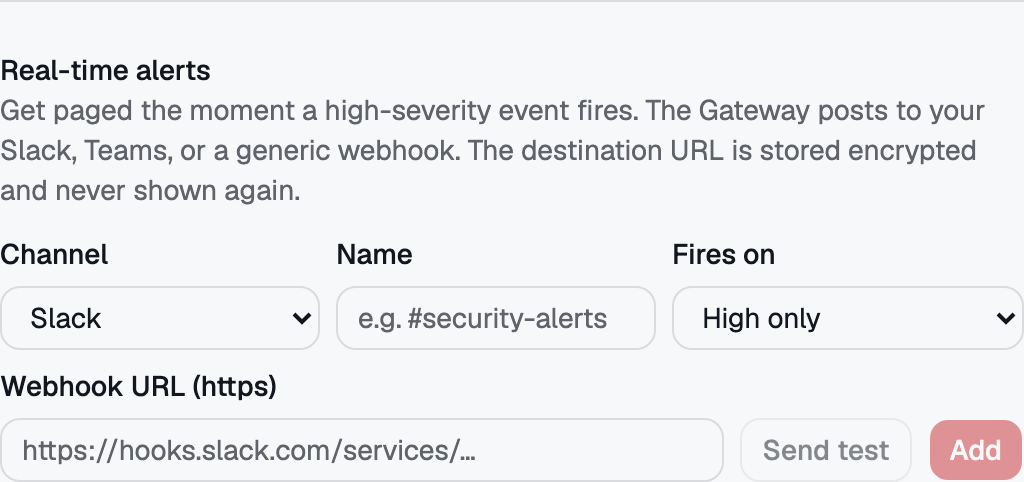 Alert channels — Slack, Teams or a plain webhook, with a test send before you save.