
The Overview screen
Overview answers one question — is everything all right? — before it offers you anything to do.
The five tiles
Each is clickable, and the first four cover the last 24 hours.
- AI requests · 24h with an hourly sparkline. The shape matters more than the number: a flat line during working hours usually means tools stopped routing through Sentilai, not that nobody worked.
- Blocked by policy · 24h. Turns a warning colour above zero. Click through to see which rules fired.
- Seats in use,
x of y available. Admins and developers share one pool. - Devices active · 24h, and how many are registered in total. A large gap means machines are enrolled but not being used — often people who left.
- Ungoverned AI agents, a standing count rather than a 24-hour one. Most days it reads "none detected", which is the answer you want. Above zero it names an autonomous agent found on a device that Sentilai can see but does not route. See Ungoverned AI agents under Devices and logs.
Next steps
Below the tiles are the two things most new organizations have not done yet: invite another admin, and configure SSO. They disappear from your attention once done.
The backup-passkey warning
If your account has only one passkey, a banner sits at the top of this page until you add a second. It is the single most common way an admin locks themselves out permanently.
The header line
Your signed-in email, your organization name, and your region — EU or US. The region determines which Gateway your developers' tools talk to and where the audit data lives.
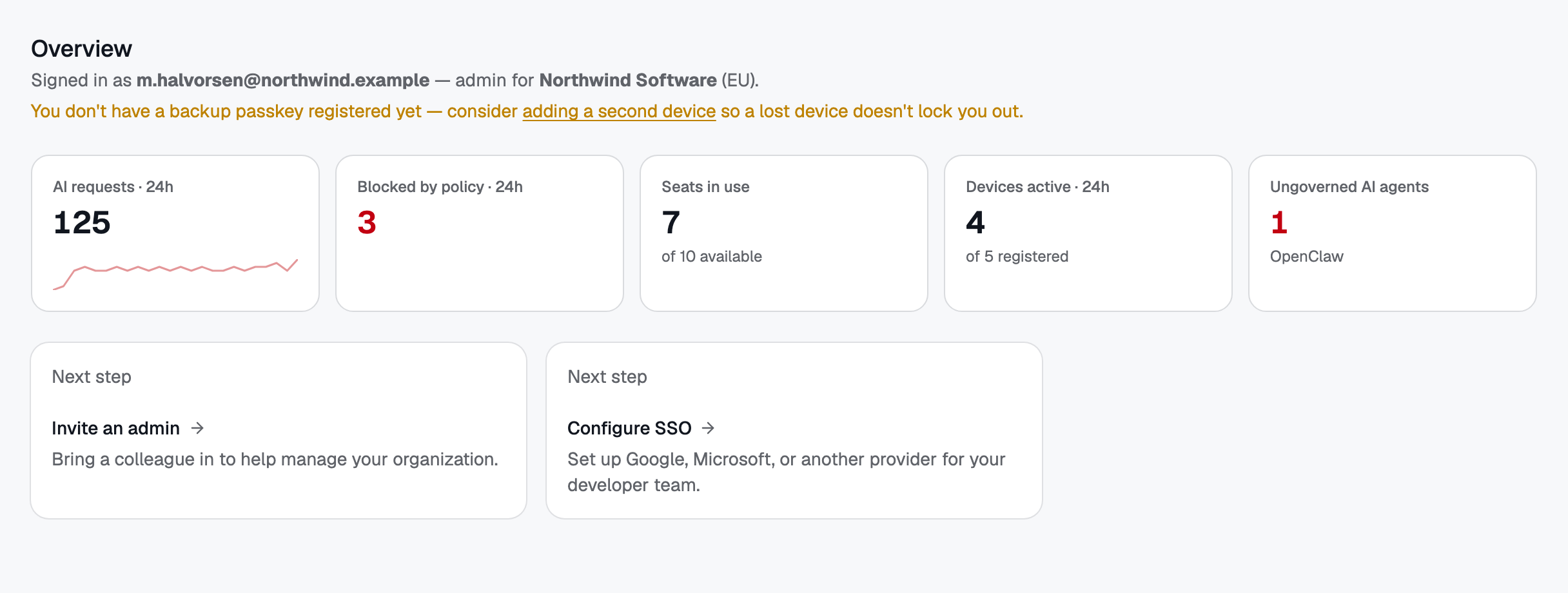
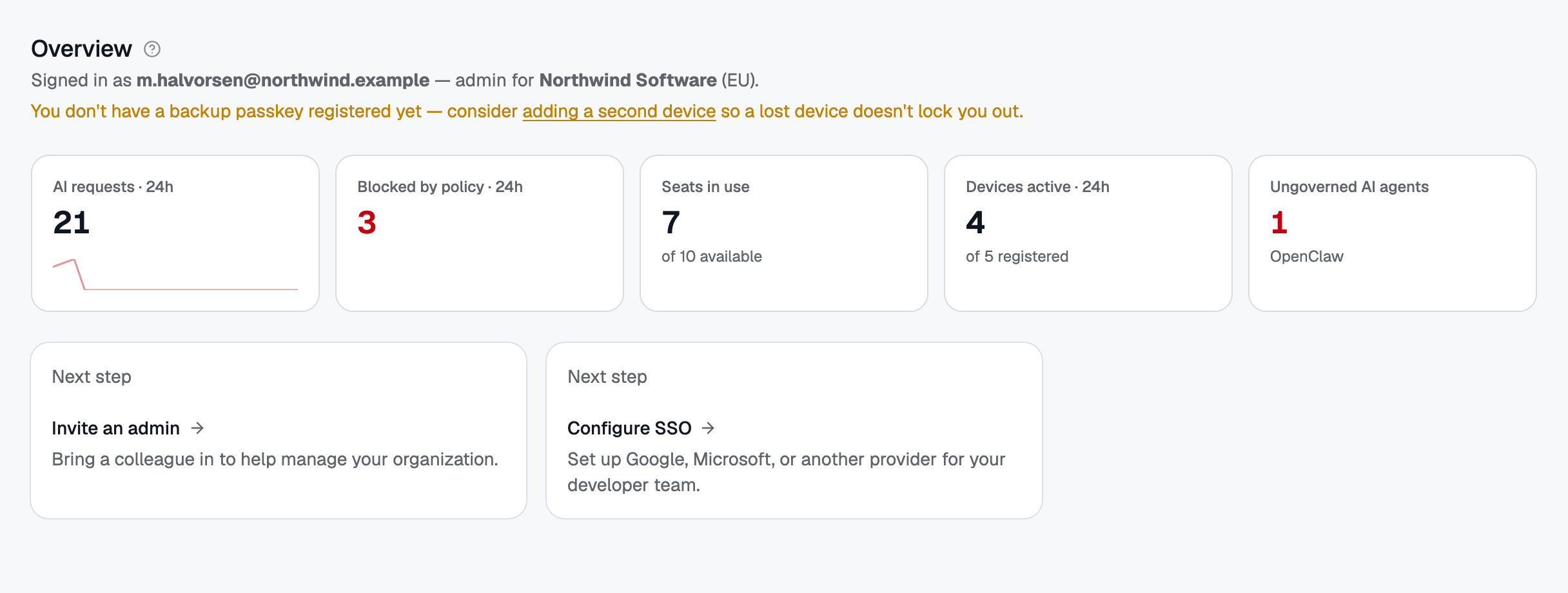 The Overview answers "is everything OK?" first: requests, blocks, seats, active devices, and any ungoverned AI agent found on a machine.