
Overview
Getting started
Sentilai is the control plane for the AI coding assistants your team already uses. Every request from Claude Code, Cursor, GitHub Copilot, Gemini CLI or Codex CLI routes through the Sentilai Gateway, where your policy is enforced in real time and everything is audited — your developers keep their tools and their workflow.
What you need
- A Sentilai workspace (your admin invite email contains a passkey setup link — no passwords).
- The Sentilai Endpoint app on each developer machine (macOS today, Windows coming), which configures the tools automatically.
First steps
- Create your passkey. Open the setup link from your invite email and register a passkey (Touch ID / Windows Hello / security key). This is how you sign in everywhere.
- Open the Admin Console. You land on the Overview with the guided setup checklist.
- Install the Sentilai Endpoint on a developer machine and sign in. Click Govern all detected tools — the app finds the installed AI tools and routes them through the Gateway. No per-tool manual setup.
- Watch Activity. Within a minute of the first AI request you'll see audited events: model, tool, tokens, risk findings.
Where things live
- Activity — the audit trail of every AI request.
- Policy — MCP rules, risk detectors, real-time alerts, egress blocklist.
- MCP Inventory — every MCP server your developers use, with per-server and per-tool controls.
- Users & Teams, Devices, Providers, Billing — administration.
Next: Connect your tools and the per-feature guides in this help center.
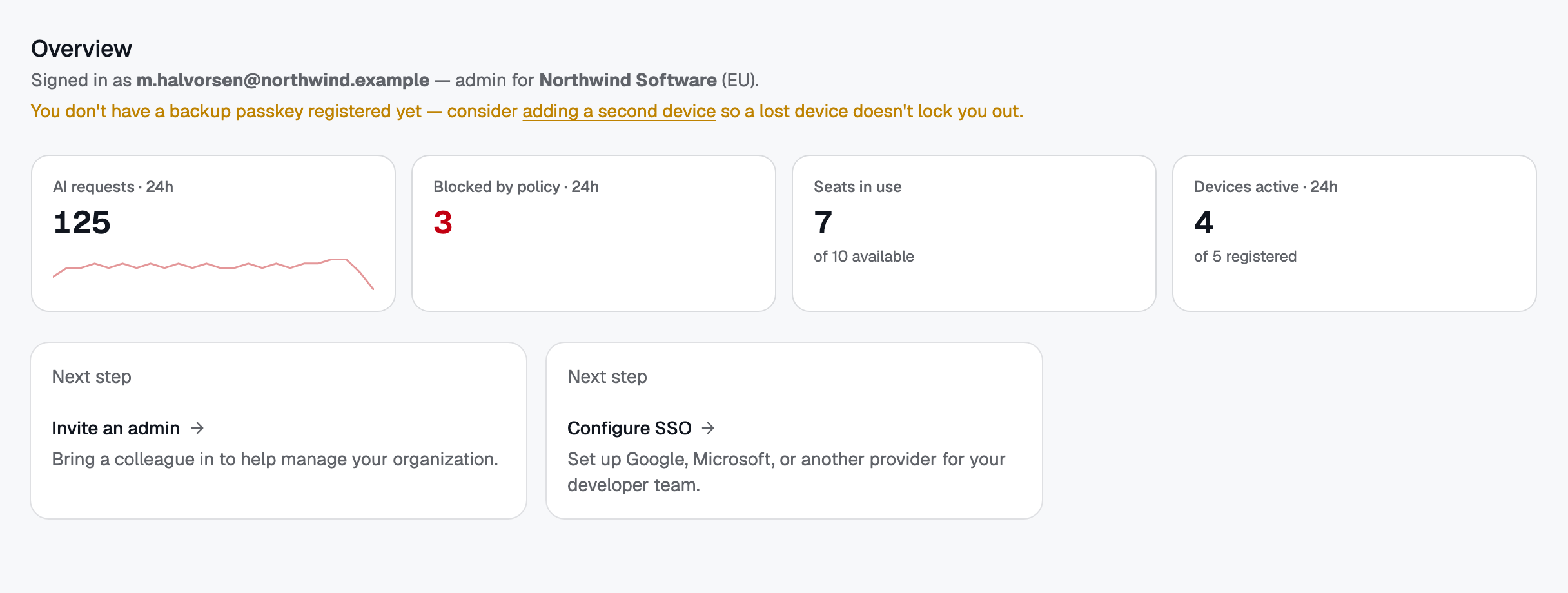 The Overview answers "is everything OK?" first: requests, blocks, seats and active devices.