
Manage your passkeys
Account & Profile is where your own credentials live.
Your profile
Name and email, read-only. They come from the identity that signed you in, so they are changed where that identity lives rather than here.
Add a second passkey
The single most important thing on this page.
Add a passkey registers another one — a different laptop, a phone, a hardware key. Set up for new sign-in registers one directly in the page for the on-host sign-in flow, without leaving the console.
Until you have two, the console warns you on Overview. With one passkey and one lost device, there is no password to fall back on: another admin has to send you a new setup link, and if you are the only admin, that becomes a support ticket.
The passkey list
Each with a name — or "Unnamed passkey", which is what you get when the browser did not supply one — and a status of active or pending.
Remove deletes one, after a confirmation. You cannot remove your last passkey; that request is refused with an explicit message rather than a generic error.
Remove the passkeys of devices you no longer have. A passkey on a laptop you returned to a previous employer is still a working credential.
What "pending" means
A passkey that was created but whose registration has not completed. If one sits pending, remove it and register again.
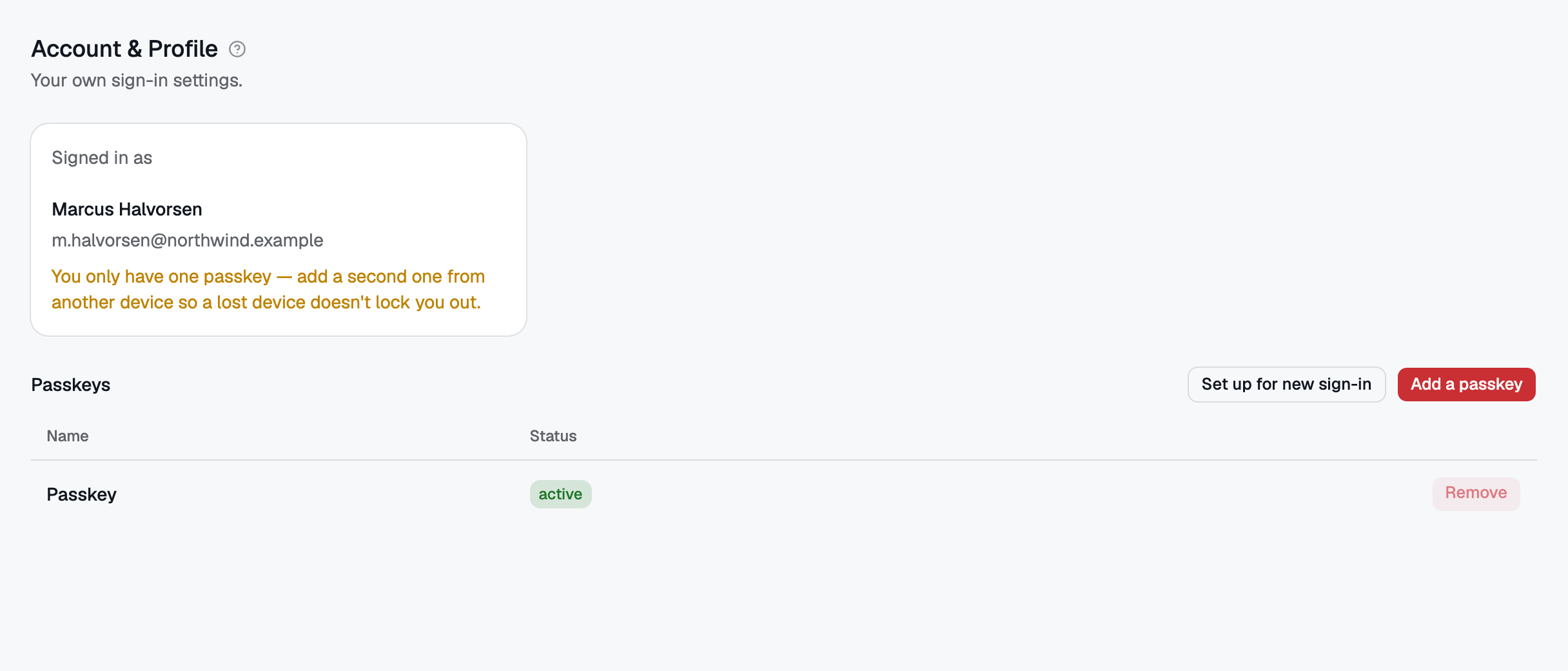 Account & Profile — your own passkeys. The last one cannot be removed, which is what stops a self-lockout.
No comments to display
No comments to display